An index of MailFleet: what each part does, and the shortest path to using it well. Read it start to finish on your first day, or jump to the entry you need. Every screen, step by step, is in the Help Center.
Step 01
Connect a mailbox
Connect any provider over IMAP/SMTP: import a CSV of mailboxes — a Smartlead export works as-is — or test one mailbox's settings first with the connection tester.
A few minutes
Step 02
Turn warmup on
Switch warmup on for each mailbox and let it build reputation on the MailFleet network. There's no fixed period and it never blocks sending — give a new domain a few weeks before real volume.
Keeps running
Step 03
Import leads, write steps
Upload a CSV, map the columns, then write two or three short emails with variables, fallbacks and a preview.
20 minutes
Step 04
Deploy and answer
Clear Final Review, deploy, then work the reply queue each morning. A reply stops that lead's sequence on its own.
Daily, 10 minutes
01
Senders & mailboxes
Every email leaves from a real mailbox you own. Connect as many as you like — mailboxes and teammates are never metered — and each campaign rotates across the active mailboxes you give it.
Import from a CSV: Mailboxes → Import CSV takes a Smartlead export, or a file with Email, SMTP Username and SMTP Password columns plus optional IMAP and SMTP host and port columns. Google and Microsoft mailboxes connect with an app password. Every row is verified as it's added, and credentials are stored encrypted.
Test one first: Connect Mailbox → Any IMAP / SMTP opens the connection tester, which checks SMTP and IMAP without saving anything and explains any failure in plain words.
Open a mailbox to set Emails Per Day and the Minimum Gap Between Emails, the From name, a reply-to address and the signature. A new mailbox starts at 30 emails a day with a 20-minute gap unless your CSV sets its own limit.
Select several with the row checkboxes and use Bulk Edit to push the same limits, warmup settings or signature across all of them. Pause Sending takes a mailbox out of rotation without deleting it — replies to it keep arriving.
Rule of thumbFour mailboxes at 40 emails a day beat one at 160. Spread the volume; providers read pace, not totals.
02
Warmup
A new mailbox has no reputation. Warmup exchanges real emails with other customers' mailboxes on the MailFleet network — never with your leads — and it's free: it never uses email credits or a mailbox's daily limit.
Turn it on with the switch in a mailbox's Warmup column, on its Warmup tab, or for many at once with Turn On Warmup. Set warmup emails per day, a daily ramp-up, an optional random daily range and the reply rate. A mailbox switched on with nothing set starts at 20 a day. It needs IMAP to warm.
Watch Health and Ready to Send. The Health ring names the first thing to fix — a disconnected mailbox, missing SPF, DKIM or DMARC, bounces above 2% — and Ready to Send is a checklist with a fix button for each item. Neither one holds a campaign back.
Ramp gradually. For a new mailbox or domain, 20 a day with a ramp-up of 3 and a 30% reply rate for two to three weeks before cold campaigns is a sensible start. Warmup has no end date: it runs until you switch it off.
Leave it running after launch. Continuous warmup protects reputation between campaigns, and warmup mail is kept out of your reply queue.
Don'tDon't send a campaign from a mailbox on day one, and don't buy a domain on Monday to send on Tuesday. MailFleet won't stop you — but age plus warmup is what earns the inbox.
03
Leads & lists
Leads live in lists you can reuse across campaigns. Every address is deduplicated across your workspace, so re-importing a file fills in the person you already have instead of adding a copy.
Import a CSV in Leads, or inside a campaign's Leads step. Map your columns to Email, First name, Last name, Company, Job title, City and the other lead fields (Industry, Employee count, Country, Website, Phone, LinkedIn URL, Timezone).
Add custom fields for anything else in the file — they become variables you can write into any step.
Check the summary after import: added, updated and skipped, with the reason for every skip. Skipped rows never take room in your workspace, and updating a lead you already have takes no extra room.
Suppression is automatic — bounced and unsubscribed people keep that status, sit in the Suppressed view, are left out of every enrolment and can't be revived by a re-import. Settings → Blocklist blocks single emails or a whole company's domain.
PersonalizationTwo real fields per lead (company and a role or city) beat ten generic ones. Fill any variable you use for every lead, or give it a fallback.
04
Sequences
A sequence is a handful of short emails with waits between them. It stops for a lead the moment they reply — no cleanup. Out-of-office auto-replies don't count: the sequence holds until their return date, then continues. Only a subsequence you've set up (started by a reply tag) ever sends after a reply.
Write step one and insert variables from the Variable menu — {{first_name}}, {{company}}, {{title}}, {{city}}, the other lead fields and any custom column. Add a fallback like {{first_name|there}}; a step whose variable is empty with no fallback is skipped for that lead, never sent with a gap.
Add follow-ups and set each wait in days — calendar days from the previous send. A step that comes due outside the sending window, or on a day you don't send, goes out when the window next opens.
Preview as lead renders the message with a real lead's data — flip through leads and fix any variable that comes up empty before sending.
Send test to yourself, and use + Add variant under A/B variants to test up to five versions of a step. The ★ winner is marked once every version has 10 delivered emails and one is clearly ahead.
What earns repliesStep two often out-replies step one. Three steps is usually the whole game; a fourth mostly annoys.
05
Schedule & timezones
Sending windows decide when your mail lands. Set them per campaign and MailFleet paces the queue inside them, mailbox by mailbox.
Pick the window in Campaign Settings → Schedule with the clock picker — start and end, e.g. 09:00 to 16:30.
Choose a timezone — or switch on Use each lead's timezone so 9:00 means 9:00 wherever they are. It reads each lead's Timezone column; leads without one fall back to the campaign's timezone.
Set sending days by toggling Mon–Sun (weekdays are on by default), the gap between emails (jitter is added automatically) and how many new leads start each day.
Read the capacity line. It shows how many emails a day each mailbox and your whole selection can carry, so nothing is over-committed.
06
Campaign setup & deploy
Five steps, in order, with a final check before anything sends: Leads → Sequences → Subsequences → Settings → Final Review.
Leads — import, paste or pick a list. Duplicates, unsubscribes and bounced addresses are left out, and this step only ever shows the leads in this campaign.
Sequences and Subsequences — write the steps and waits, preview and test; optionally add a subsequence that starts when a reply gets a chosen tag, such as Meeting request.
Settings — schedule, behavior, delivery and tracking, mailboxes, protection and unsubscribe, and auto-tagging. Choose which mailboxes this campaign uses, or leave it empty to rotate across all your active ones; each mailbox's own daily limit still applies.
Final Review — every check in one list: leads queued, at least one email written, an active mailbox, SPF and DKIM on every sending domain (DMARC is recommended, not required) and at least one sending day — plus emails a day across your mailboxes and how many sending days it takes to reach everyone. Clear them, then Deploy Campaign.
Pause anytimePausing stops future sends; an email already handed to a mailbox in the current pass still goes. Resuming picks up where each lead's sequence left off.
07
The reply queue
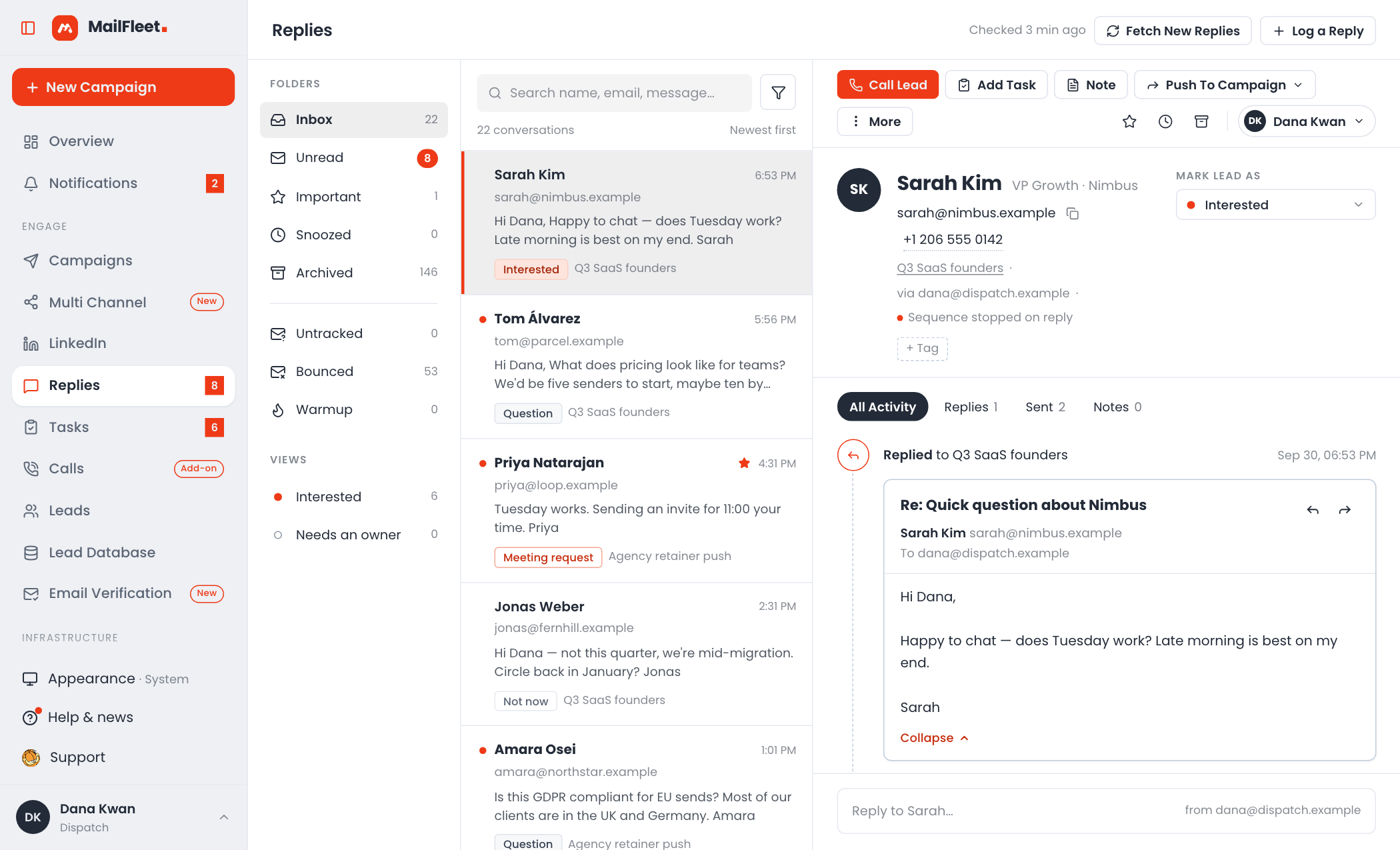
One queue for every mailbox and LinkedIn account. You never check accounts one by one, and a real reply stops that lead's sequence before you've read it.
Work the folders — Inbox, Unread, Important, Snoozed — or the Interested view, and filter by tag, campaign, mailbox, teammate or date. Every reply is tagged by intent: Interested, Meeting request, Question, Not now and the rest.
Open a conversation to see the lead's whole timeline: every email they were sent, their replies, your answers, notes and tasks.
Reply from the address they wrote to, in the same thread, with attachments if you need them. The sequence stays stopped.
Or triage: Mark lead as a tag (a tag can start a subsequence), Snooze, Archive, Assign to a teammate, Add Task, Create Deal, or Block the lead or their whole domain.
Replies — every mailbox in one queue08
Reports
The numbers that decide what to change next: a funnel from sent to interested, per-campaign rates, charts you build yourself, and a CSV of everything.
Read the funnel — Sent → Delivered → People reached → Opened → Clicked → Replied → Interested — as counts and rates together. Opens count every recorded open, so read them as a rough signal; clicks in the first 5 minutes and auto-replies are left out.
Compare campaigns in the per-campaign table — open, click and reply rates of the people reached, interested people and the bounce rate. Hover a cell for the counts behind it.
Build a custom report: Reports → Custom Report → pick metrics, a chart type (bars, lines or a table), group by campaign or week, and a date range. It's saved as a live card that rebuilds from fresh data.
Export CSV downloads every campaign's status, leads and sent, opened, clicked, replied, interested, bounced and blocked counts.
09
Deliverability
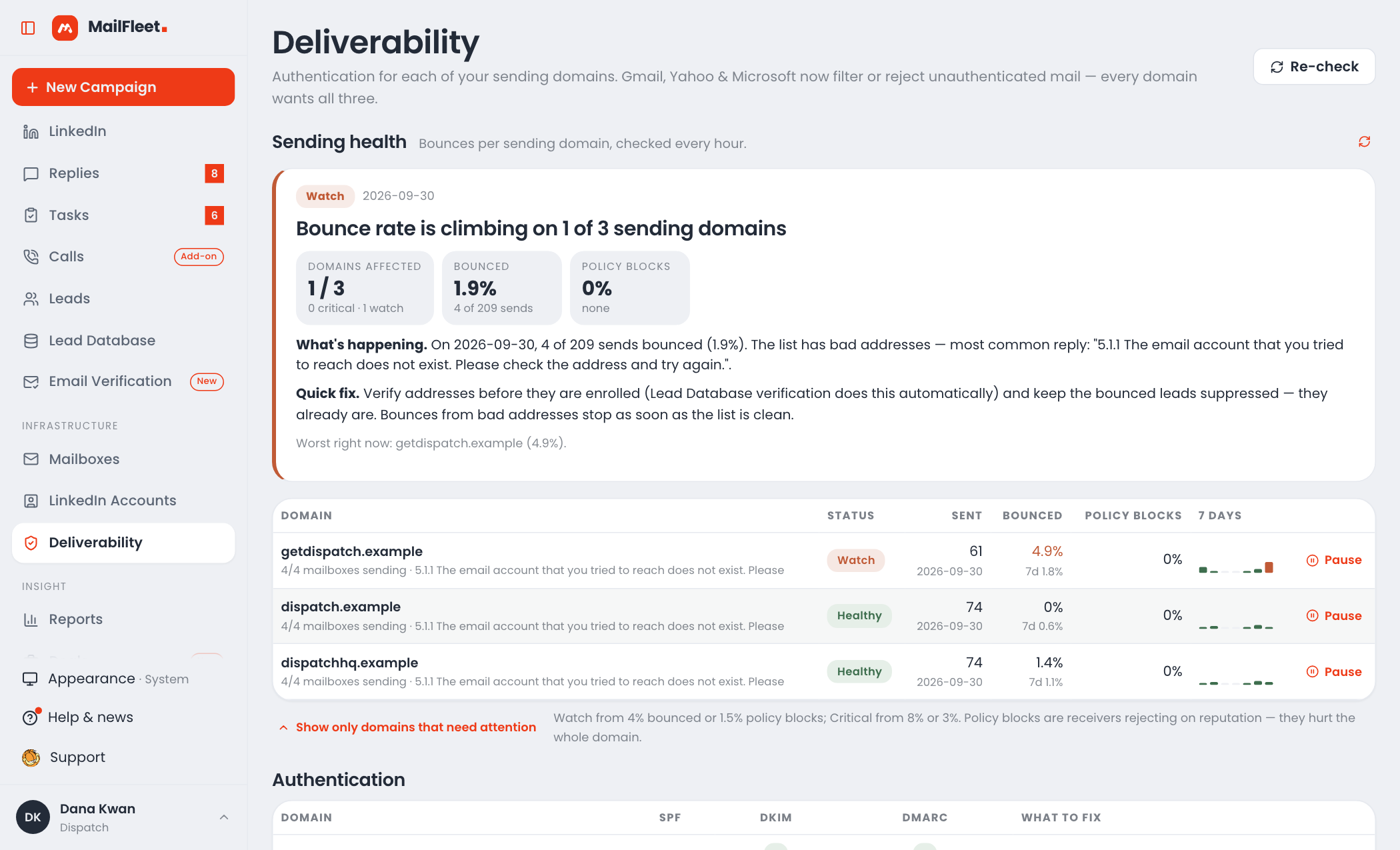
Boring on purpose. Human pacing, per-mailbox limits, SPF, DKIM and DMARC checked on every sending domain, and every domain's bounces and blocks watched hourly.
Fix DNS first. SPF and DKIM must pass on every sending domain before a campaign can deploy; DMARC is strongly recommended. The Domains tab on Mailboxes shows all three for each domain.
Watch the Deliverability page. Each sending domain shows a week of sends against bounces and spam or policy blocks, with a Watch or Critical status and the likely cause. Pause holds that domain's mailboxes out of rotation while it recovers — one click, and only when you choose.
Add a tracking domain if you track opens or clicks: save a hostname in Settings → Tracking, point a CNAME at fltrk.com, then turn tracking on per campaign under Settings → Delivery (tracking is off by default and needs plain-text mode off). Step by step: custom tracking domain.
Keep bounces under 2%. Above that it's a list problem — verify or clean the list rather than pushing volume. Keep click tracking off unless you need it.
If replies dipCut volume by half for a week, check warmup is still on, and re-read step one aloud. Deliverability problems often start as copy problems.
Deliverability — bounces and blocks per domain, with a one-click pause10
Workspace & team
Unlimited teammates on every plan. Everyone in a workspace shares its mailboxes, campaigns, leads and replies — and never sees any other workspace.
Invite by link in Settings → Members. Workspace owners send invites (each link lasts 7 days and can be revoked) and remove teammates; everyone else works with the same campaigns, leads, replies, mailboxes and settings.
Each campaign carries its own schedule. Set its timezone, window, days and pace in its Settings → Schedule before you deploy.
Run clients separately. Agencies use one workspace per client so leads, mailboxes and reports never mix; one login can belong to several workspaces and switch between them.
Connect your stack. Every plan can forward real replies to any inbox and post 13 webhook events — replies, interested replies, bounces, unsubscribes, deals and more — to your CRM or Zapier. Pro and Scale add the two-way REST API and the Claude connector.